Workday Core Connectors Interview Questions
Here is the list of Interview Questions related to Core Connector Integrations.
What are Core Connectors and type of connectors?
Workday connectors are the type of Integration by which we can send or receive data from external endpoints.
Core Connector is a pre-build Integration Template used to connect third party endpoint, which provide a method of integrating with Workday and ensure that external systems receive only the data you want to expose.
Core Connector is a pre-build Integration Template used to connect third party endpoint, which provide a method of integrating with Workday and ensure that external systems receive only the data you want to expose.
Packaged Connectors – Also called as delivered connectors. These type of integration connectors are designed for specific vendors. No additional coding is required. We need to perform some basic configuration and they are ready for launch.
Core Connectors – These are more generic templates which we can use with any third-party vendor. Here we have to do coding to meet vendor specific requirements like file format etc. So, here more configuration is needed in comparison with Packaged connectors.
How do you configure a Field Override Service?
Step 1: Go to Related Actions of integration >> Configure Integration Services >> Custom Integration Services >> Click on Create >> select "Create Integration Field Override Service".
Step 1: Go to Related Actions of integration >> Configure Integration Services >> Custom Integration Services >> Click on Create >> select "Create Integration Field Override Service".
Step 2: Enter the name to the service and select Business Object on which you wanted the fields. Also add the alias for the fields that you wanted to use. Click ok.
Step 3: Go to integrations system>> Configure Integration Field Overrides and then click on the service that you have created on the left hand side (usually after Define Eligibility).
Step 4: Select the fields that you want to additionally add under override external fields section. These fields will show up under additional section in xml output file of integration.
What is a Field Override Service?
Field override service is used to add extra fields such as calculated fields in the output as these fields are not available under any service.
What is the use of XSLT in an integration?
You use XSLT ( eXtensible Stylesheet Language Transformations) to transform the input or output data going into an XML document. Learn here w3schools
What is a Field Override Service?
Field override service is used to add extra fields such as calculated fields in the output as these fields are not available under any service.
How can we add additional fields in Connectors?
Through Field Override Service
What is the use of XSLT in an integration?
You use XSLT ( eXtensible Stylesheet Language Transformations) to transform the input or output data going into an XML document. Learn here w3schools
What is a WSDL? Why are they important?
WSDL stands for Web Service Description Language, and they are important because they specify how XML documents should be formatted to be accepted as input or define the output of Workday Web Services.
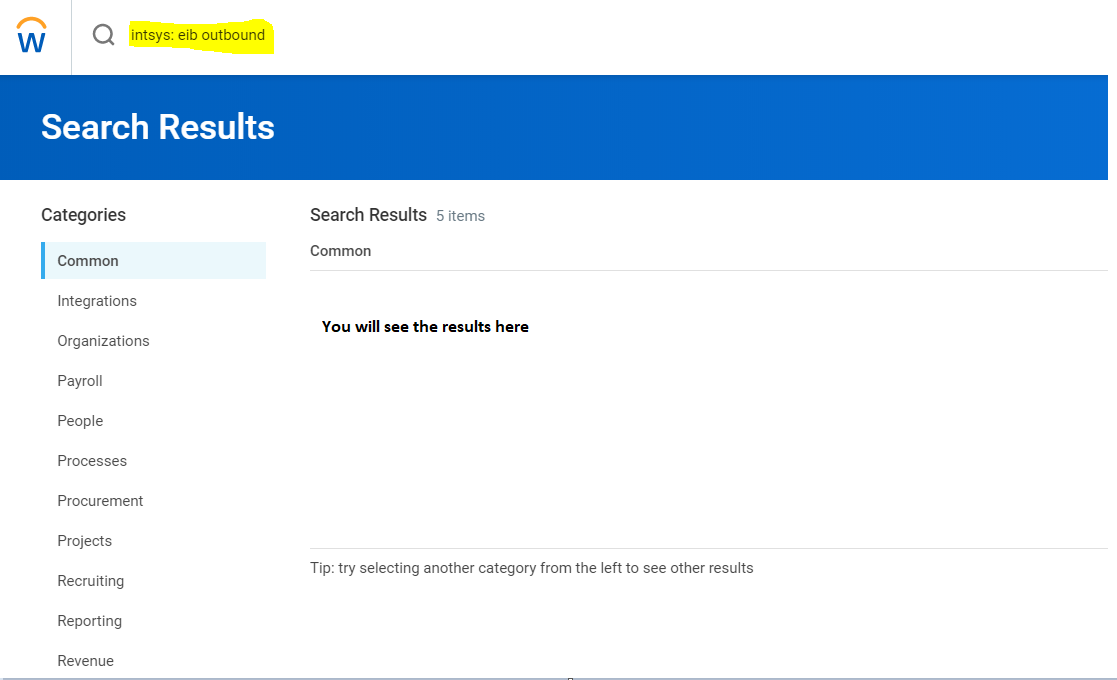
What is the Search prefix that you can use to search all integrations?
intsys:
Name some Integration ID types?
Workday ID, External ID, Reference ID
What are the different audit files that get generated for your Cloud Connector?
Data Changes Audit - This audit holds the relevant data changes. For each worker, displays the Integration Field Override Service name, field name, current and prior field values, and worker transactions for each field included on the integration output file.
Diagnostic Audit - This audit holds the data relevant to eligible entrants from the core connector.
Both of them are of file type .html
What is the use of Suppress Audit Report and where to configure?
In Configure Integration Attributes, you have the option to enable / disable “Suppress Audit Reports” integration attribute by checking or unchecking the checkbox you configure. If you check this checkbox, Core connector doesn't generate this audit file - DiagnosticAudit.html. By default it is unchecked.
Which file is deliverable when you run your Core Connector?
WSDL stands for Web Service Description Language, and they are important because they specify how XML documents should be formatted to be accepted as input or define the output of Workday Web Services.
What is the Search prefix that you can use to search all integrations?
intsys:
Name some Integration ID types?
Workday ID, External ID, Reference ID
What are the different audit files that get generated for your Cloud Connector?
Data Changes Audit - This audit holds the relevant data changes. For each worker, displays the Integration Field Override Service name, field name, current and prior field values, and worker transactions for each field included on the integration output file.
Diagnostic Audit - This audit holds the data relevant to eligible entrants from the core connector.
Both of them are of file type .html
What is the use of Suppress Audit Report and where to configure?
In Configure Integration Attributes, you have the option to enable / disable “Suppress Audit Reports” integration attribute by checking or unchecking the checkbox you configure. If you check this checkbox, Core connector doesn't generate this audit file - DiagnosticAudit.html. By default it is unchecked.
Which file is deliverable when you run your Core Connector?
Outputfile.xml:
This is the real output file which can be sent to vendor. We can also apply transformation on this to change the output file format or data in it according to requirements. This file will have by default “deliverable” tag which specifies that this file is deliverable to vendor if delivery is configured.
What are the Date Launch parameters available for Core connector Worker ?
There are 4 date launch parameters available:
As of entry moment: This is the transaction or data entered date which says, till which date the integration has to pick the records.
Last successful as of entry moment: This is the transaction or data entered date which says, what was the most recently used As of entry moment in the last successful Integration (Refers to last integration run). If this is your first time run, then it will be null.
Effective date: This is transaction effective date for the data entered in the system (As of entry moment) which says, till which date the integration has to pick the records.
Last successful effective date: This is the transaction effective date for the data entered in which says, what was the most recently used Effective date in the last successful Integration (Refers to last integration run). If this is your first time run, then it will be null.
How to send output files to external endpoints and what are the available options in that?
We can deliver output files to external endpoints such as SFTP/FTP using delivery service which is provided by workday. We have to add delivery through business process step. So once integration is successful and document is generated, next step will run through Business Process which will be document delivery.
How do you Configure Delivery?
On your Integration,
Step1: Go to business process >> create, copy or link definition.
Add a new step ‘c’, select the type as “service” and in specify select “document delivery”. Click OK.
Step2: You will get an error that the delivery endpoint is not configured. Click on “Configure Document Delivery” to configure endpoint.
Step3: Select the transport type from the list. Enter the credentials. Click OK.
How to configure a Core Connector to show the hires in last 1 month?
To achieve this, you configure the relanvent Core Connector services.
In Transaction log set to Hire BP only. This way it will look only for hire transactions as per our requirement.
Set the 4 important launch parameters:
As of entry moment: This will be current date and time.
Effective date: This will be today's date as I want to check till today
Last successful as of entry moment: This will be a date field which will have value (today – 30) days.
Last effective date: This will be again (today – 30) days.
This way integration will look for employees hired in last 30 days.
What are the other launch Parameters apart from dates in Core Connectors Worker?
Workers: This is a filter, while you want to run your integration for a specific list of Workers, then here you have a choice to select specific workers for which you want to see the transactions. This is an optional.
Restrict results by orgs: This is again a filter, while you want to run your integration for a specific list of Organizations, then here you have a choice to select specific Orgs for which you want to see the transactions. This is an optional.
Full File: This is a checkbox item. If you check this check box, then the integration will not look for changes and gives you all values as of integration run date. This ignores Last successful as of entry moment and Last successful effective date. If you don’t select this option, then it will only find changes and only include those records in output who have changes in one or more output fields. By default this option is not selected.
How to select fields for the output of integration?
Firstly you need to select the service related to which you want to show in the output. For Example If you want compensation related fields in your output, then select checkbox against “Core Connector: Worker / Worker Compensation Data Section Fields”
Then go to “Configure Integration Field Attributes” and select the fields that you need in output.
How to configure Notifications for Integration events?
We can send notifications to users or groups up on Integration abort, errors, completion etc. Below are the steps:
Step1: Go to Integration system >> Integration Notifications
Step2: Select when you want to send notification like if status is aborted, failed, completed etc.
Step3: Select the recipients. You can add a list of Email Id’s or particular security groups like integration admin to send notification to whole group.
Step4: Write the message content so that it will be easy to understand to recipient.
Which all transactions we can select to include in output file? Can we select all?
Yes, we can select all transaction or business processes to include in output.
We can achieve this using Configure Integration Transaction Log option However, first we have to select the transaction log service while selecting services.
Select the checkbox for Override default values to do modifications.
To select all transactions, select subscribe to all transaction types.
To select specific transactions, enter the transaction name and subscribe to specific transaction types.
What are the steps involved in creating a core connector?
Step1: Search for task “Create integration system”. Enter name for integration and select template for integration. Example - “core connector worker” which provides demographic data for workers.
Step2: Select the services as per the need / requirement. Check the appropriate check boxes.
Step3: You will get an error stating “Page Error - There are Integration Attributes enabled for this Integration System that are marked as "Required for Launch", but do not have a Value assigned to them."
Please use the Related Menu Item Integration System >> Configure Integration Attributes to complete the configuration. Assign the values to attributes as per requirement. There are some mandatory attributes which will be shown as “Required for launch”.
Step4: You can define eligibility conditions or criteria. Go to Integration System >> Configure Integration Field Override. Eligibility condition will evaluate which workers are eligible for this integration. You need to select Boolean field under “Override external field”.
Step5: Then as per the requirement you can select fields which vendor wants in output through Integration System >> Configure Integration Field Attributes.
Step6: If your vendor is expecting any additional fields which are not in the core connector, then you can use field override service to add those additional fields.
Step7: Launch/Schedule Integration
Can we give custom name to output file as per vendor requirement?
Yes, We can achieve this using sequence generator. Go to Integration system >> Configure Integration Sequence Generators.
We have to specify the values under Sequence definition as per requirements.
For Example if you want to map Gender values, Workday stores values like Male, Female, Unknown. How ever your vendor wants to see the values as M, F, U
So you map it this way Male- M, Female- F, Unknown- U
Your output file will hold these values(M, F, U) instead of Workday delivered values.
There are 4 date launch parameters available:
As of entry moment: This is the transaction or data entered date which says, till which date the integration has to pick the records.
Last successful as of entry moment: This is the transaction or data entered date which says, what was the most recently used As of entry moment in the last successful Integration (Refers to last integration run). If this is your first time run, then it will be null.
Effective date: This is transaction effective date for the data entered in the system (As of entry moment) which says, till which date the integration has to pick the records.
Last successful effective date: This is the transaction effective date for the data entered in which says, what was the most recently used Effective date in the last successful Integration (Refers to last integration run). If this is your first time run, then it will be null.
How to send output files to external endpoints and what are the available options in that?
We can deliver output files to external endpoints such as SFTP/FTP using delivery service which is provided by workday. We have to add delivery through business process step. So once integration is successful and document is generated, next step will run through Business Process which will be document delivery.
How do you Configure Delivery?
On your Integration,
Step1: Go to business process >> create, copy or link definition.
Add a new step ‘c’, select the type as “service” and in specify select “document delivery”. Click OK.
Step2: You will get an error that the delivery endpoint is not configured. Click on “Configure Document Delivery” to configure endpoint.
Step3: Select the transport type from the list. Enter the credentials. Click OK.
How to configure a Core Connector to show the hires in last 1 month?
To achieve this, you configure the relanvent Core Connector services.
In Transaction log set to Hire BP only. This way it will look only for hire transactions as per our requirement.
Set the 4 important launch parameters:
As of entry moment: This will be current date and time.
Effective date: This will be today's date as I want to check till today
Last successful as of entry moment: This will be a date field which will have value (today – 30) days.
Last effective date: This will be again (today – 30) days.
This way integration will look for employees hired in last 30 days.
What are the other launch Parameters apart from dates in Core Connectors Worker?
Workers: This is a filter, while you want to run your integration for a specific list of Workers, then here you have a choice to select specific workers for which you want to see the transactions. This is an optional.
Restrict results by orgs: This is again a filter, while you want to run your integration for a specific list of Organizations, then here you have a choice to select specific Orgs for which you want to see the transactions. This is an optional.
Full File: This is a checkbox item. If you check this check box, then the integration will not look for changes and gives you all values as of integration run date. This ignores Last successful as of entry moment and Last successful effective date. If you don’t select this option, then it will only find changes and only include those records in output who have changes in one or more output fields. By default this option is not selected.
How to select fields for the output of integration?
Firstly you need to select the service related to which you want to show in the output. For Example If you want compensation related fields in your output, then select checkbox against “Core Connector: Worker / Worker Compensation Data Section Fields”
Then go to “Configure Integration Field Attributes” and select the fields that you need in output.
How to configure Notifications for Integration events?
We can send notifications to users or groups up on Integration abort, errors, completion etc. Below are the steps:
Step1: Go to Integration system >> Integration Notifications
Step2: Select when you want to send notification like if status is aborted, failed, completed etc.
Step3: Select the recipients. You can add a list of Email Id’s or particular security groups like integration admin to send notification to whole group.
Step4: Write the message content so that it will be easy to understand to recipient.
Which all transactions we can select to include in output file? Can we select all?
Yes, we can select all transaction or business processes to include in output.
We can achieve this using Configure Integration Transaction Log option However, first we have to select the transaction log service while selecting services.
Select the checkbox for Override default values to do modifications.
To select all transactions, select subscribe to all transaction types.
To select specific transactions, enter the transaction name and subscribe to specific transaction types.
What are the steps involved in creating a core connector?
Step1: Search for task “Create integration system”. Enter name for integration and select template for integration. Example - “core connector worker” which provides demographic data for workers.
Step2: Select the services as per the need / requirement. Check the appropriate check boxes.
Step3: You will get an error stating “Page Error - There are Integration Attributes enabled for this Integration System that are marked as "Required for Launch", but do not have a Value assigned to them."
Please use the Related Menu Item Integration System >> Configure Integration Attributes to complete the configuration. Assign the values to attributes as per requirement. There are some mandatory attributes which will be shown as “Required for launch”.
Step4: You can define eligibility conditions or criteria. Go to Integration System >> Configure Integration Field Override. Eligibility condition will evaluate which workers are eligible for this integration. You need to select Boolean field under “Override external field”.
Step5: Then as per the requirement you can select fields which vendor wants in output through Integration System >> Configure Integration Field Attributes.
Step6: If your vendor is expecting any additional fields which are not in the core connector, then you can use field override service to add those additional fields.
Step7: Launch/Schedule Integration
Can we give custom name to output file as per vendor requirement?
Yes, We can achieve this using sequence generator. Go to Integration system >> Configure Integration Sequence Generators.
We have to specify the values under Sequence definition as per requirements.
What is mapping and how to map fields in integration?
Mapping is used to map workday fields to external values. For Example if you want to map Gender values, Workday stores values like Male, Female, Unknown. How ever your vendor wants to see the values as M, F, U
So you map it this way Male- M, Female- F, Unknown- U
Your output file will hold these values(M, F, U) instead of Workday delivered values.

.png)


.png)